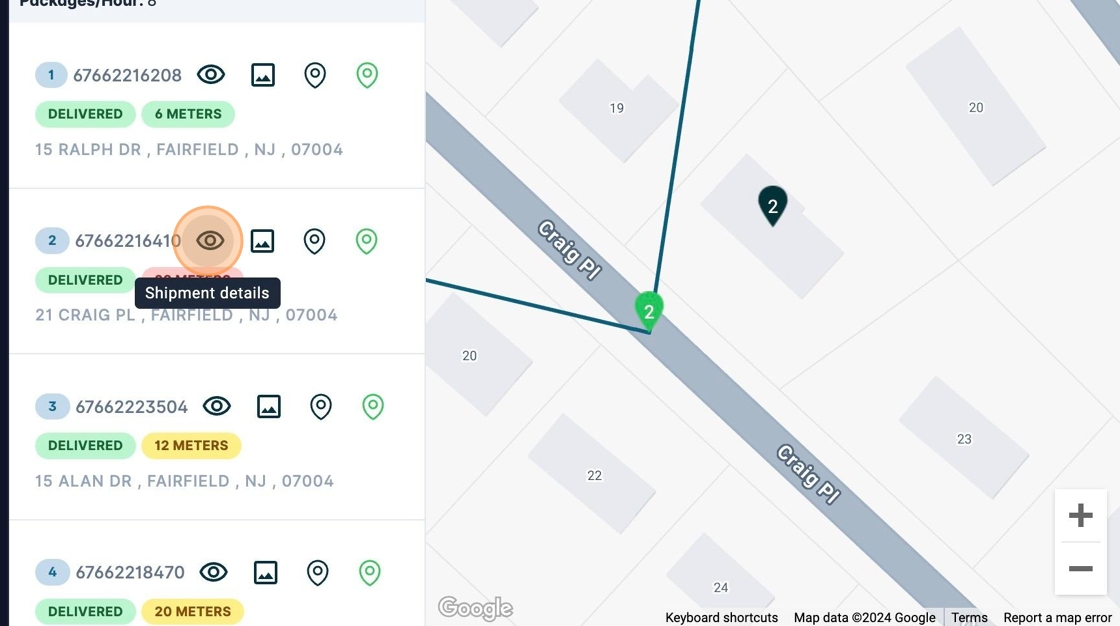
Drivers Dashboard Basics
This guide provides a straightforward path to access the Drivers Dashboard on the SyncFreight platform, enabling users to effectively monitor driver activities and performance. By following the steps outlined, users can easily view critical data from a specific date, enhancing their ability to make informed decisions. Whether you're managing a fleet or analyzing logistics, this resource simplifies the process of accessing essential driver information.
1. Navigate to https://platform.syncfreight.com/#/monitoring/drivers-dashboard
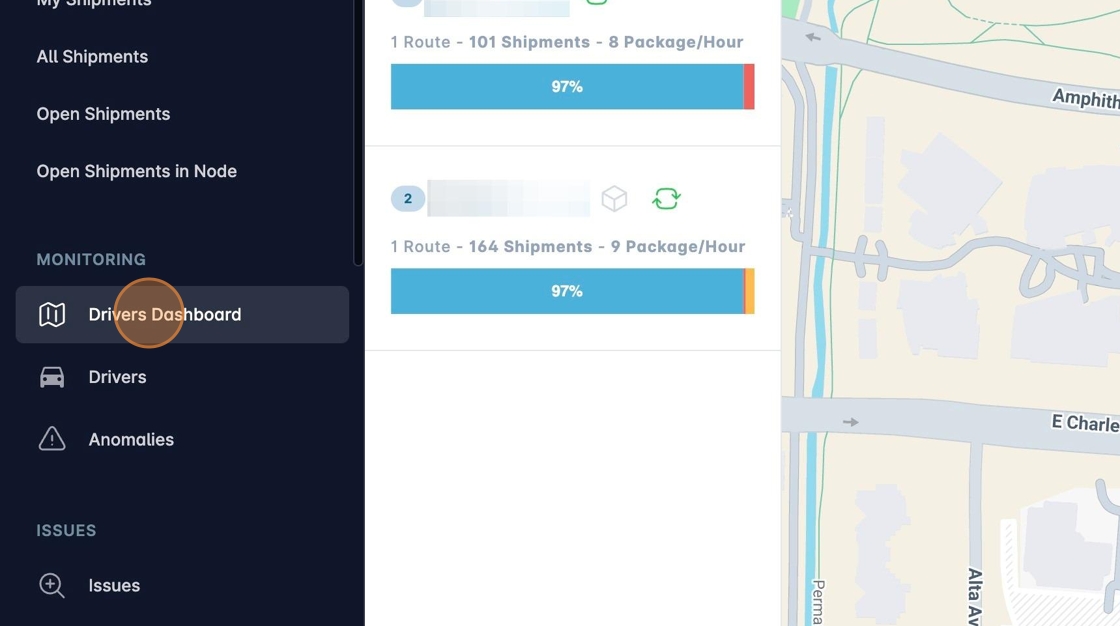
2. Or click "Drivers Dashboard"
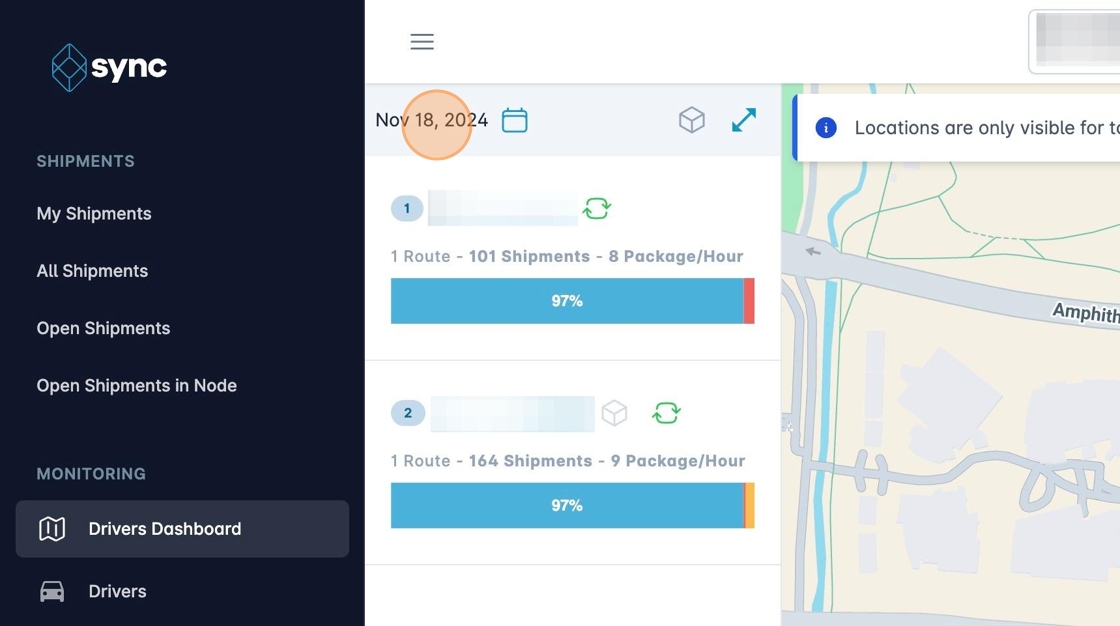
3. You can change the date in the top bar.
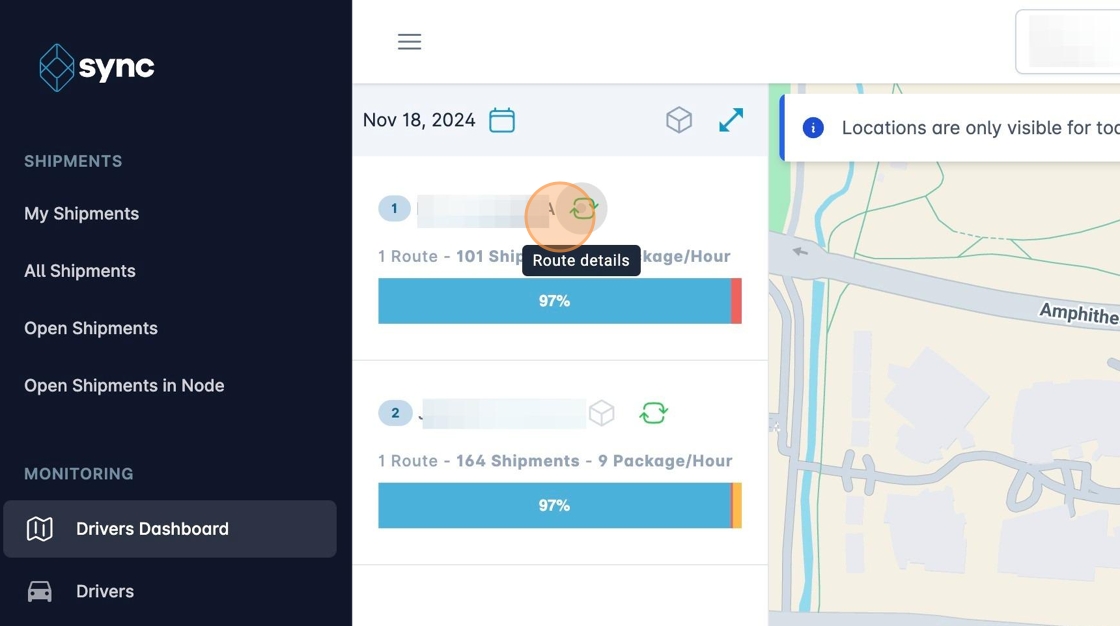
4. To view an individual route you can click on the "Route details" button.
5. Here you will see all the shipments that were in that route. The dashboard will indicate if the shipment was delivered, failed or if it is still pending.
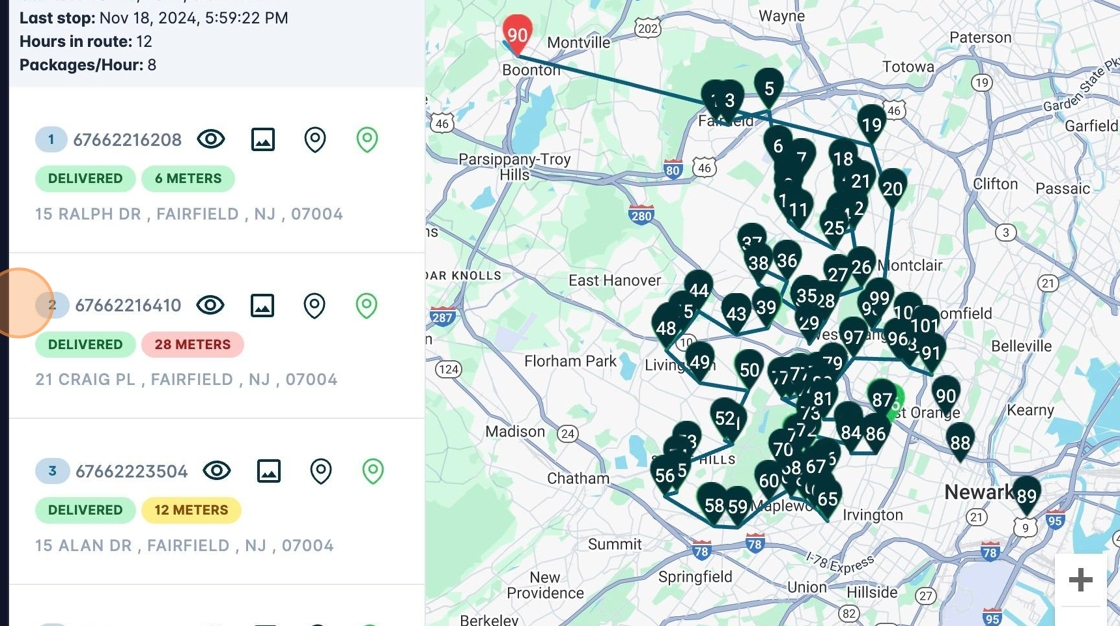
6. Using the buttons on each shipment you can view individual details. For example, if you want to see the shipment address geolocation you can click on this icon:
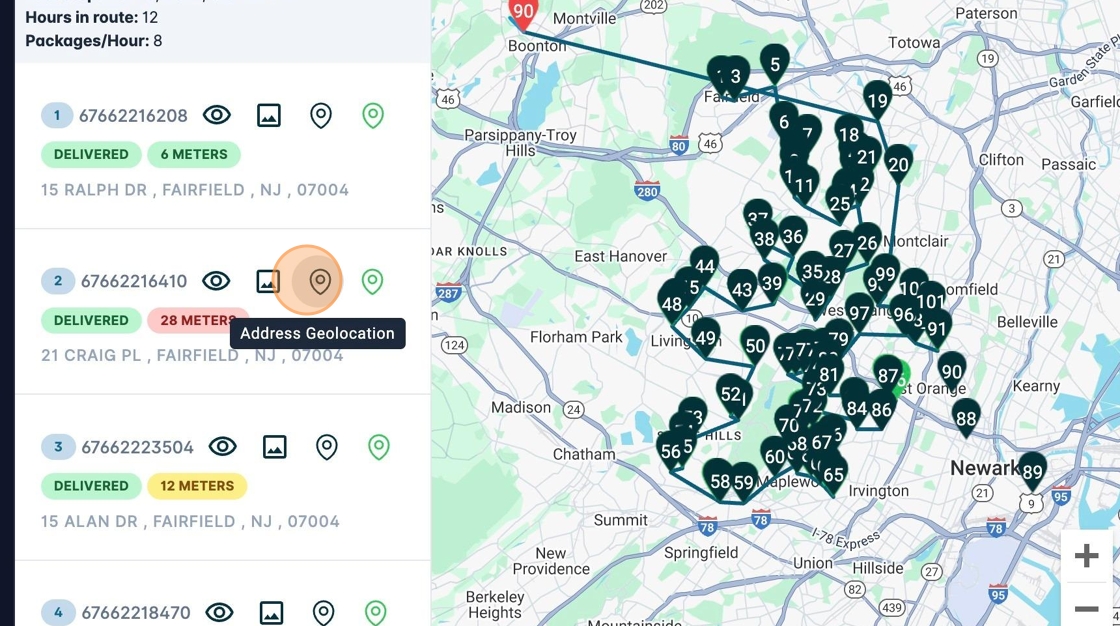
The address geolocation will be shown in a black color, while the actual geolocation where the driver was will be shown in a green or red color depending on the result.
7. To view the shipment details, click on the eye icon.