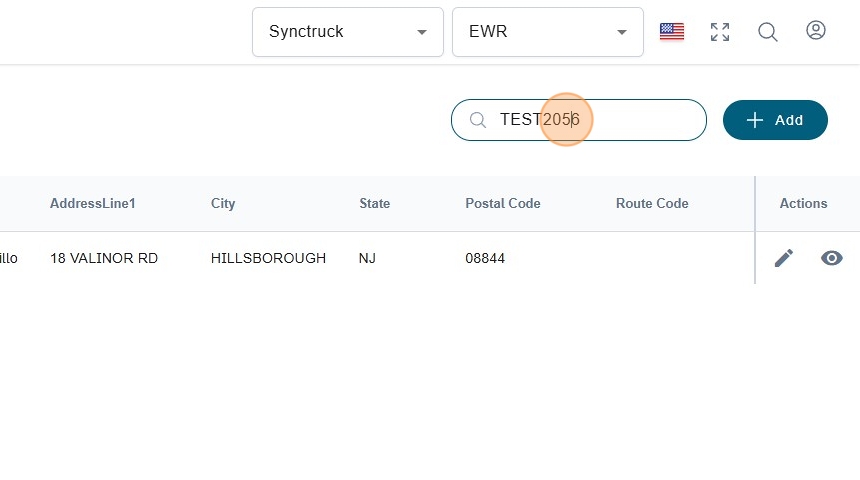
Using the Dynamic Table in Syncfreight
The Dynamic Table is a common feature across many screens in Syncfreight, used to display lists of information in a familiar, reusable format. For this example, we'll refer to the Shipments table.
- Navigate to https://platform.syncfreight.com/#/shipments
Sorting
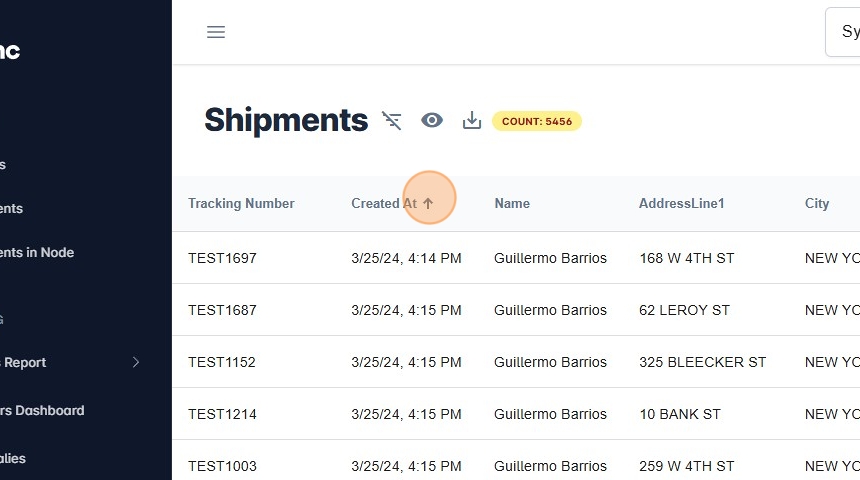
- Many columns in the dynamic table are sortable, allowing them to be sorted in ascending or descending order. Columns that can be sorted must contain date, numeric, or text values. To activate sorting, click on the arrow next to the column title.
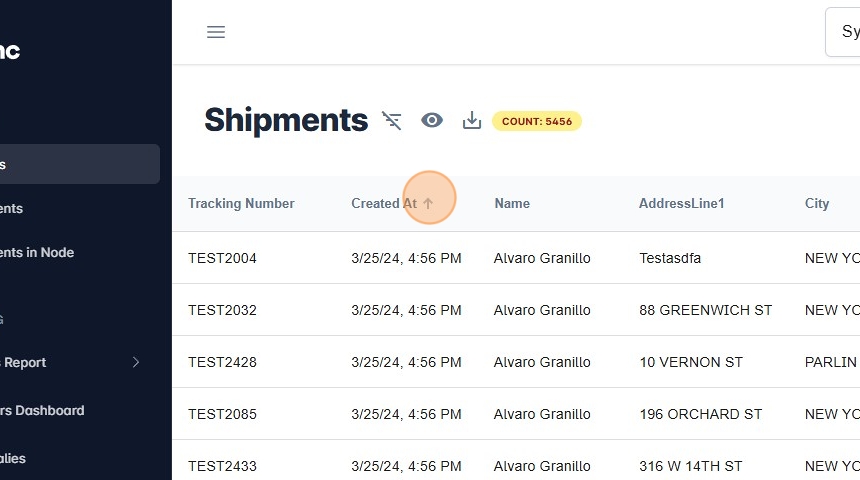
- When sorting is active, the arrow will be visible. An upward-facing arrow indicates an ascending sort. To change the sort direction, click the arrow again.
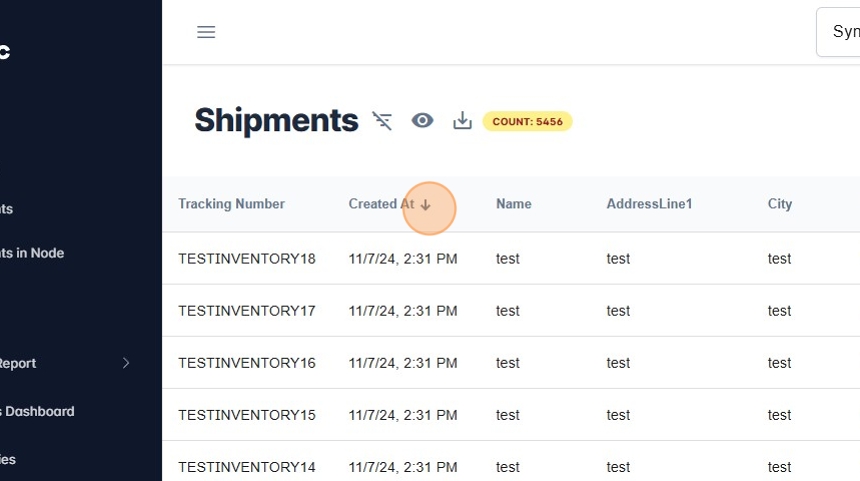
- A downward-facing arrow indicates a descending sort. To disable sorting, click the arrow once more.
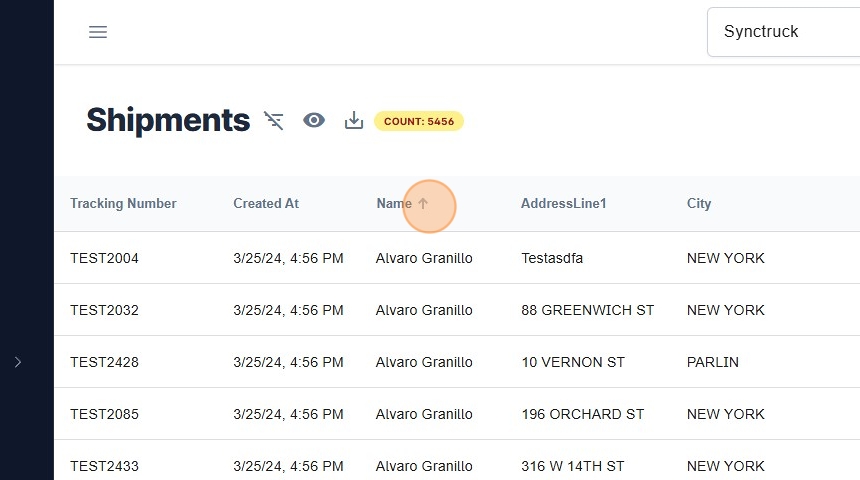
- Text columns can also be sorted. In the example below, the "Name" column is sortable.
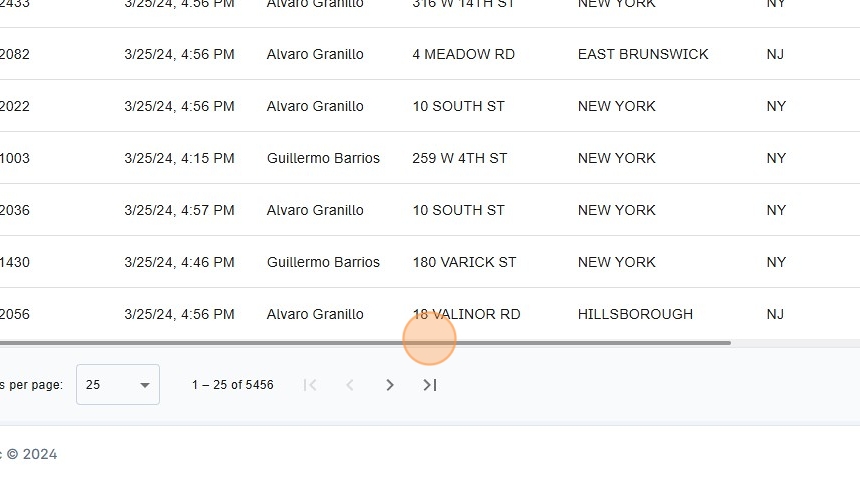
- If there are too many columns to fit on the screen, use the horizontal scroll bar to view all information for a single row.
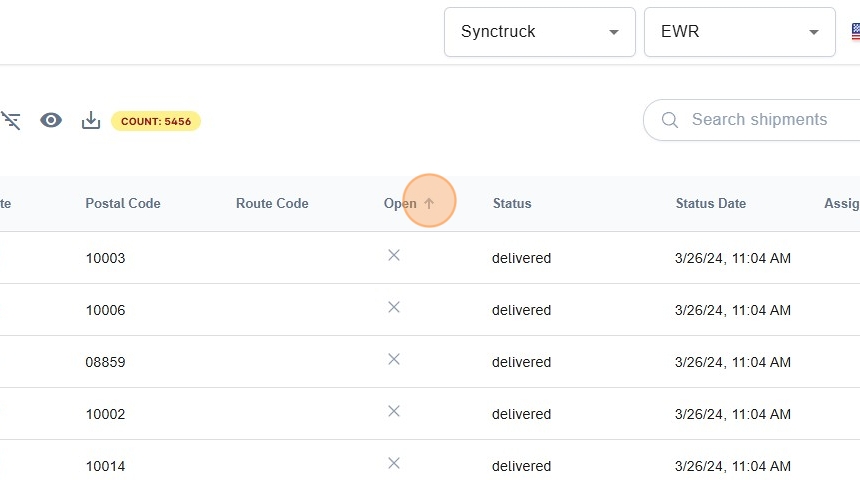
- Yes/No columns, such as the "Open" column, can also be sorted.
Filtering
- The dynamic table supports filtering. To enable filtering, click the filter icon next to the table title.
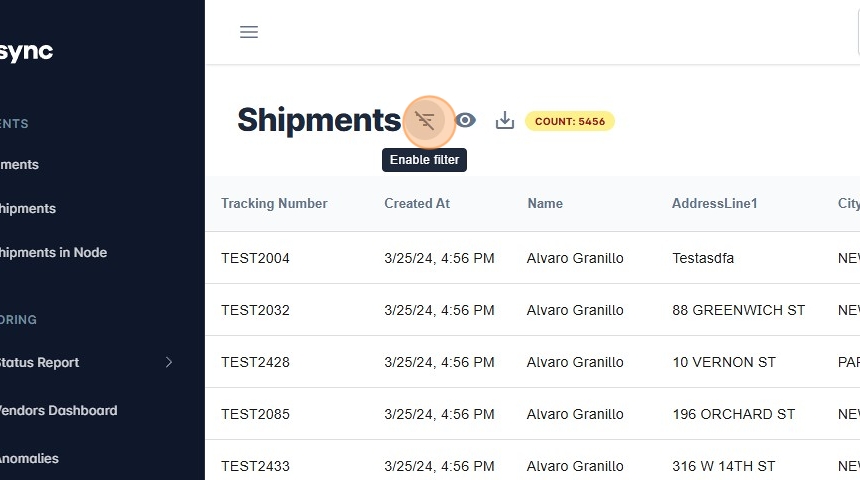
- Once filtering is enabled, columns that support filtering will display a filter icon next to them. Filter options vary by column type.
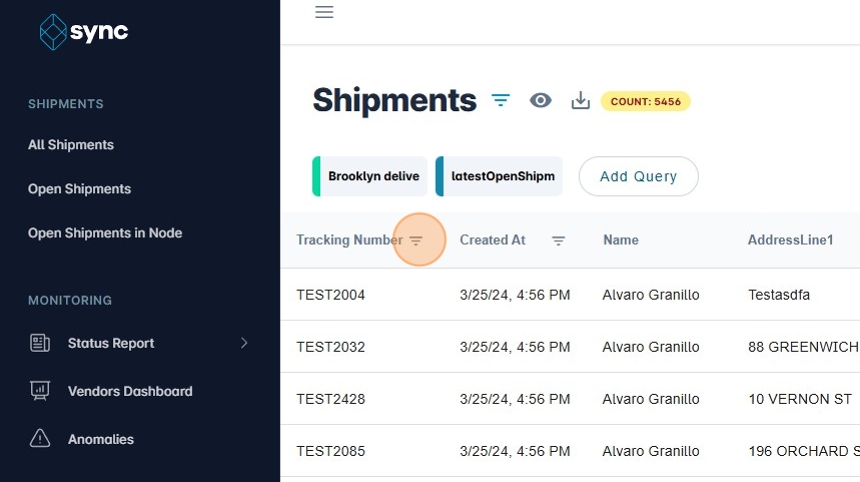
- For text columns, you can filter by entering text values in a pop-up text box.
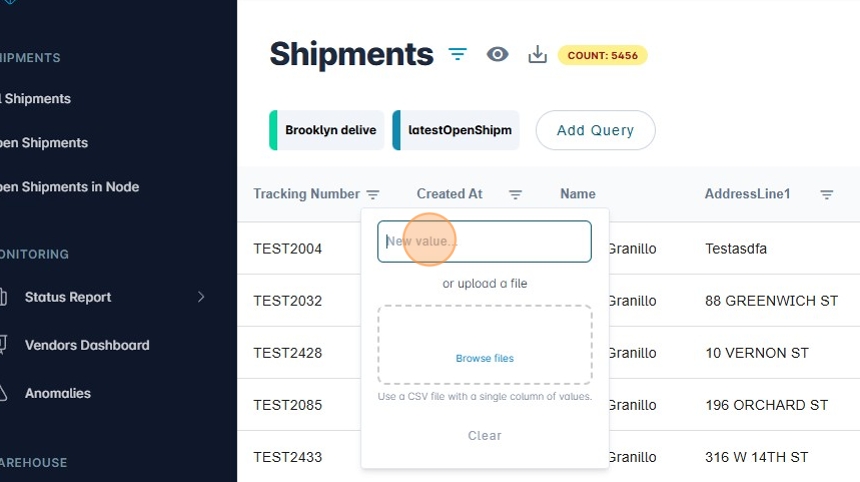
- The table will automatically update to show rows matching the entered values.
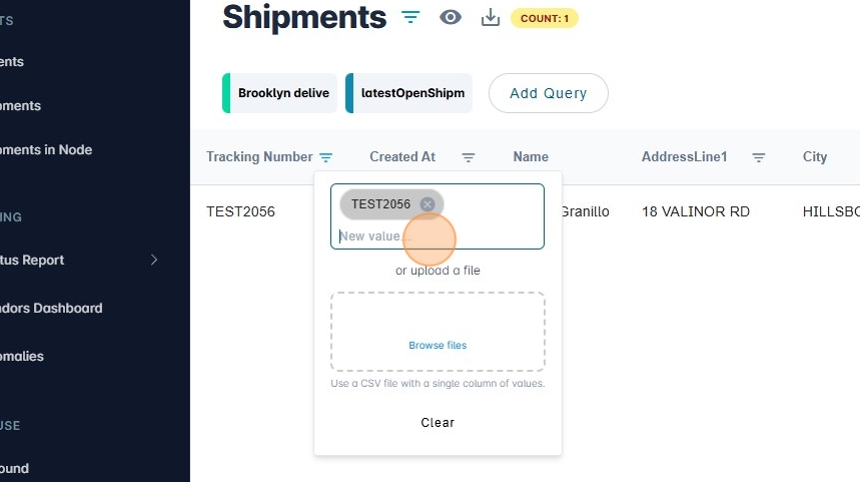
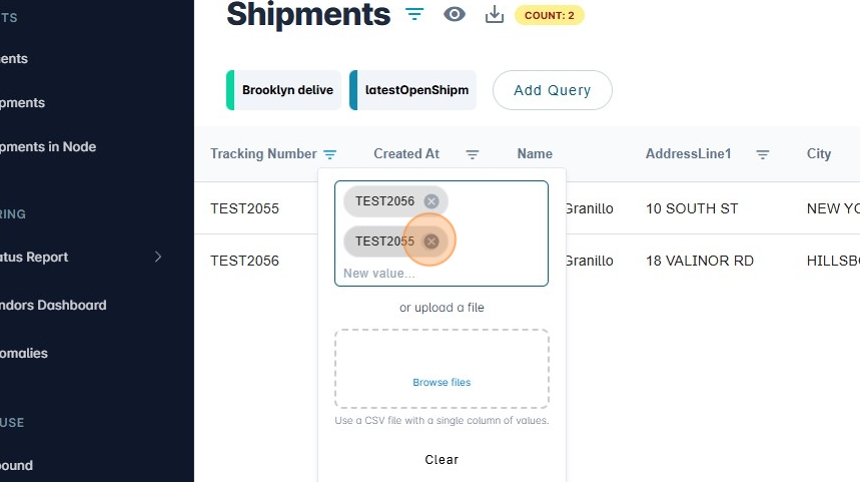
- You can enter multiple filter values. To remove a value, click the "x" next to it.
- Date columns can also be filtered.
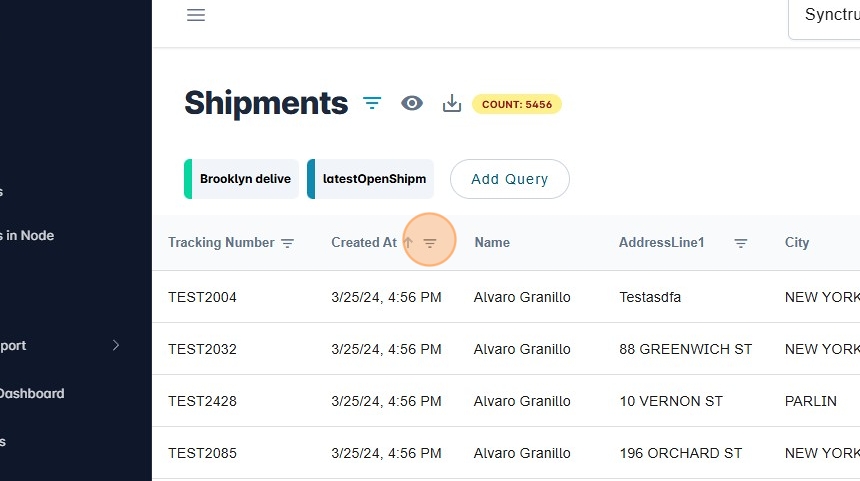
- After clicking the filter button next to a date column title, a calendar will appear.
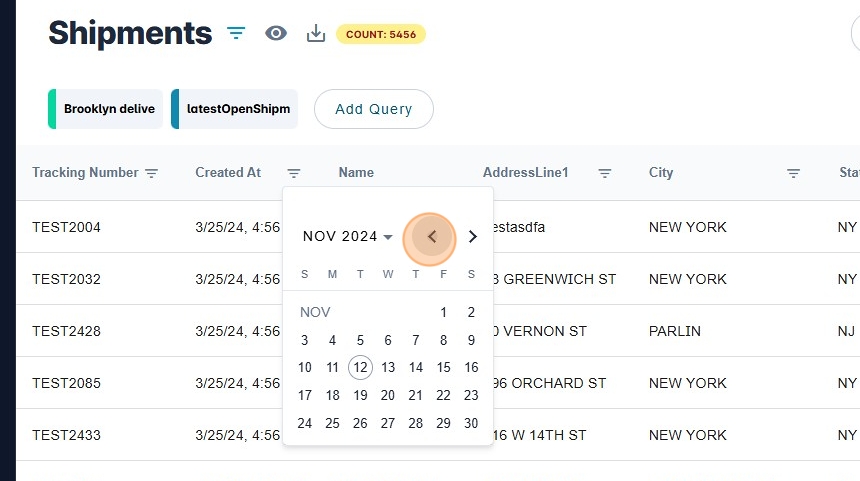
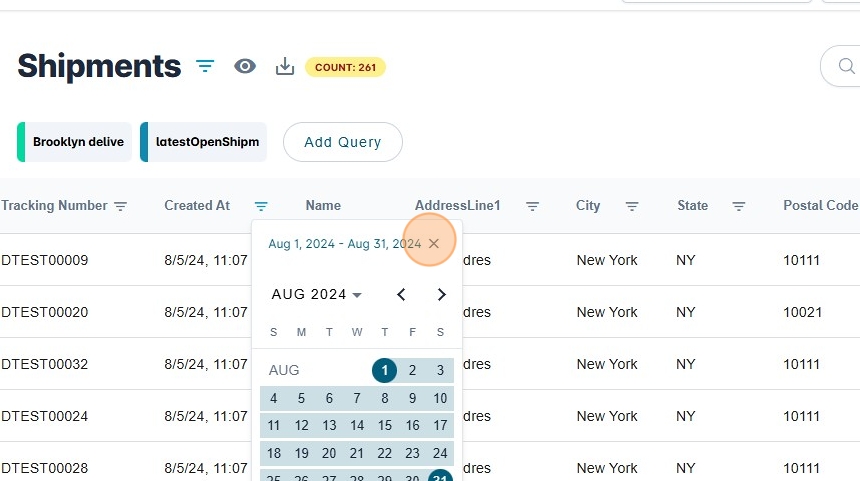
- Use the calendar to select a date range. Once selected, the table will refresh to display rows within that range.
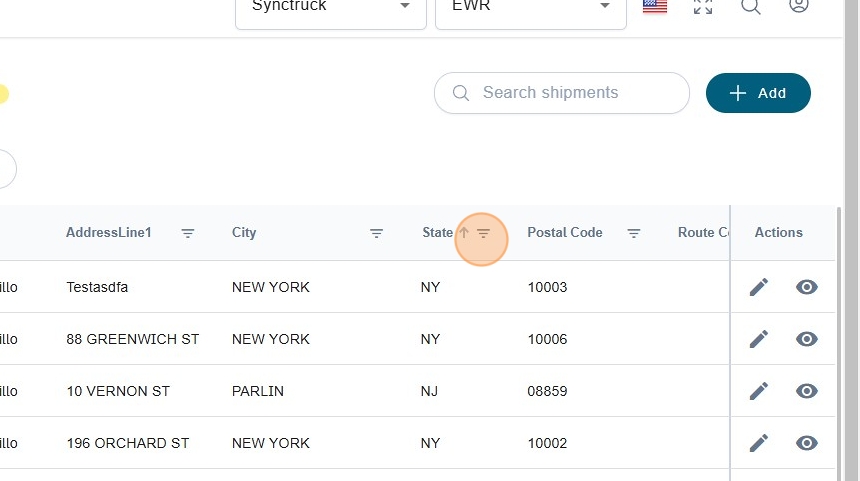
- Close filters are available for columns with predefined values. For example, the "Status" column in the Shipments table has specific allowed statuses.
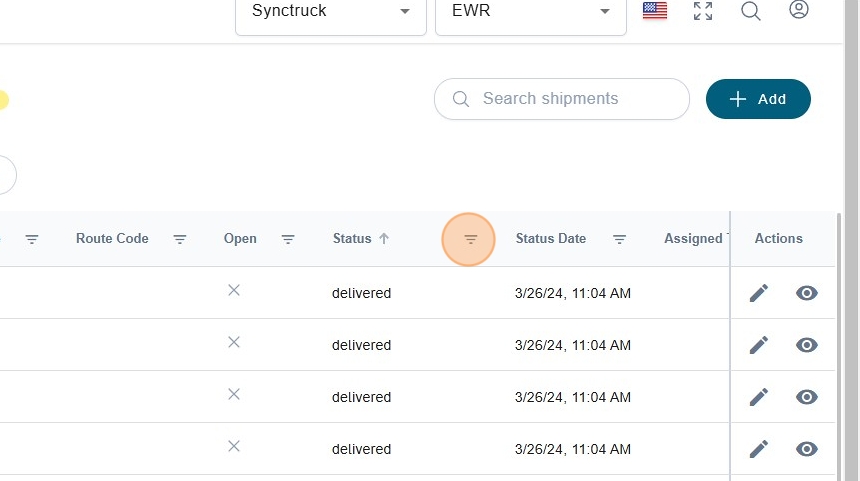
- When clicking the filter button, a list of possible values for the column will appear.
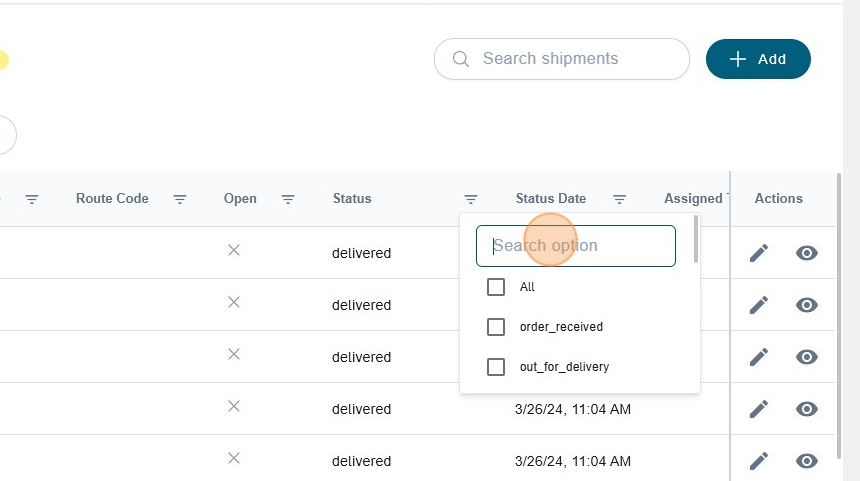
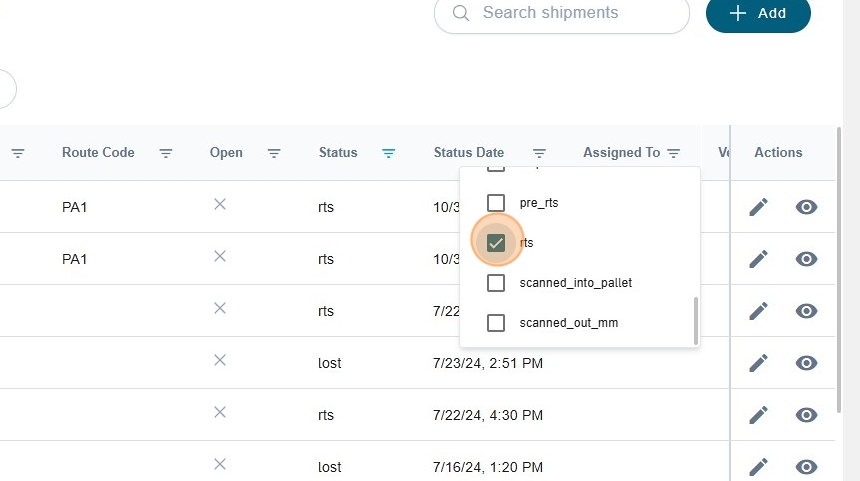
- You can select one or more options to filter by those values. The table will reload to display rows matching the selected options.
Pagination
- PPagination is helpful for tables with many items. You can select the number of items per page by using the dropdown in the pagination footer.
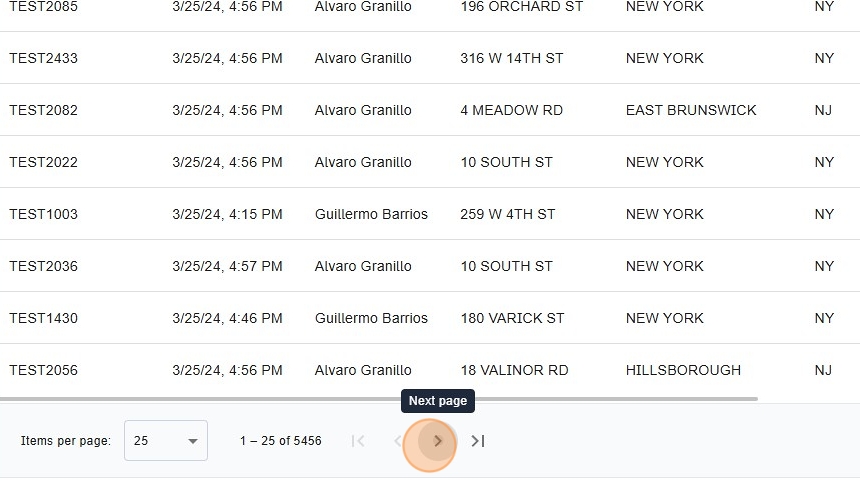
- Use the arrows in the pagination footer to navigate between pages.
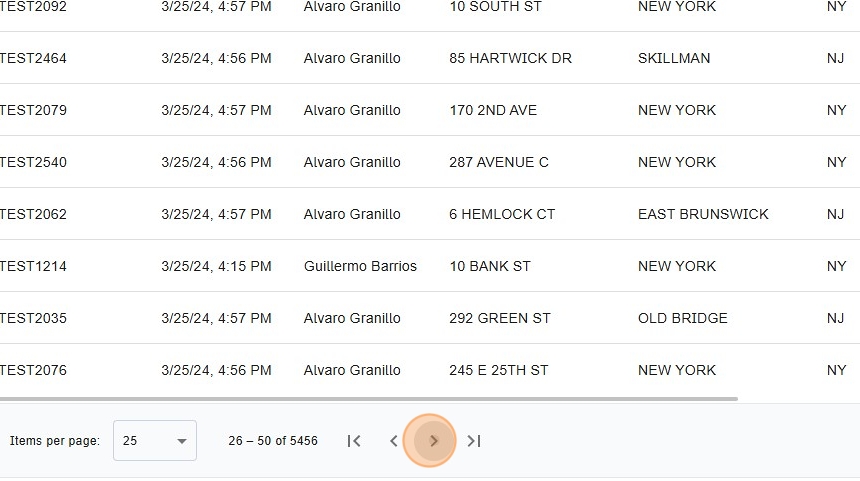
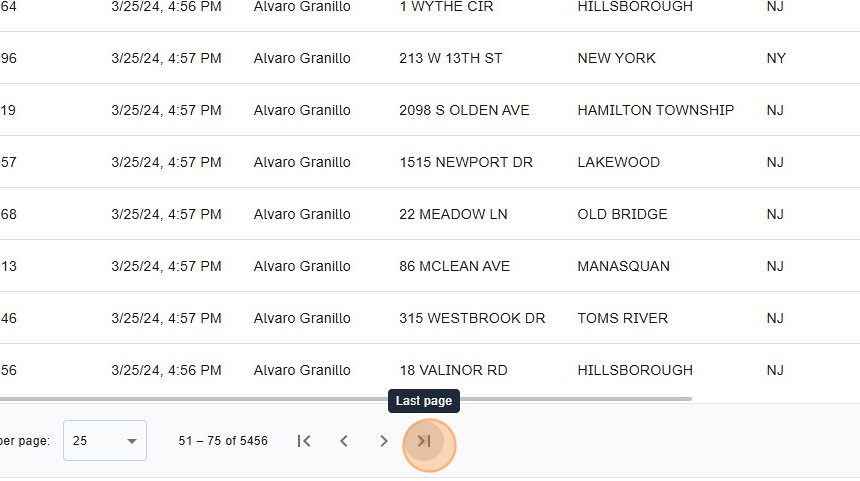
- Clicking the arrows at the far left or far right will take you to the first or last page, respectively.
Quick Search
- Some screens with a dynamic table include a quick search input. This feature allows filtering without selecting a specific column.
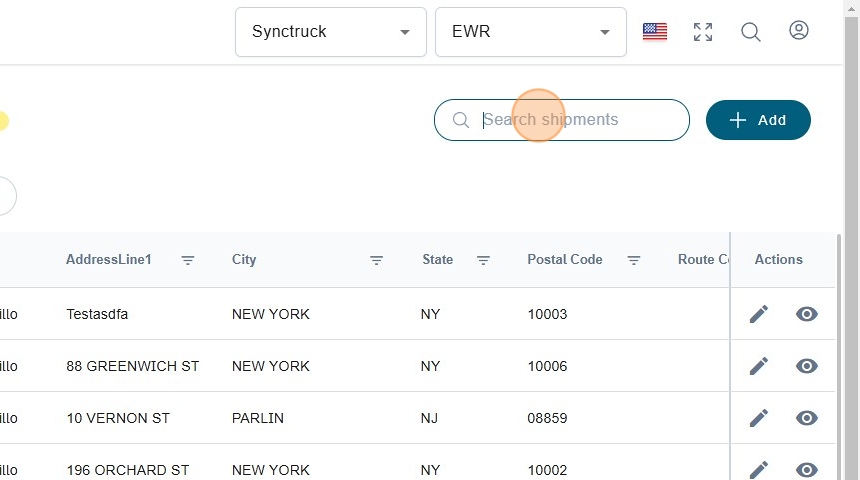
- The table automatically refreshes as you type, so there's no need to press a button or hit Enter.