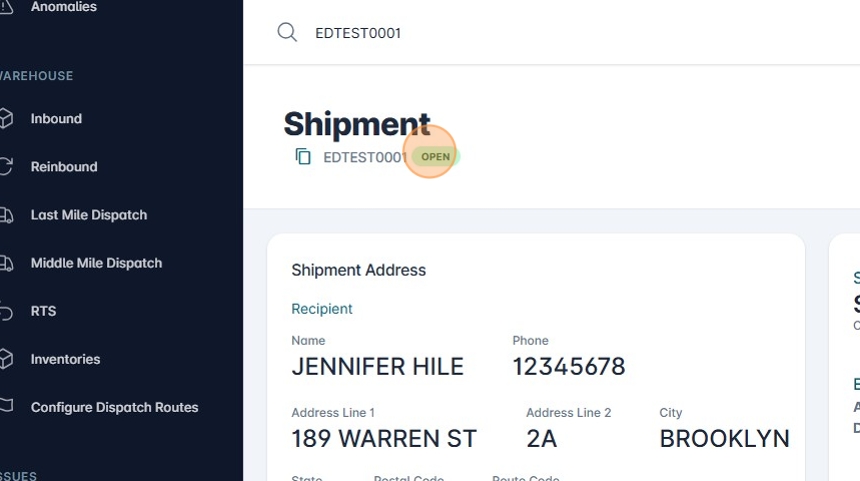
Resolving Under Research Issues.
1. Navigate to https://platform.syncfreight.com/#/issues
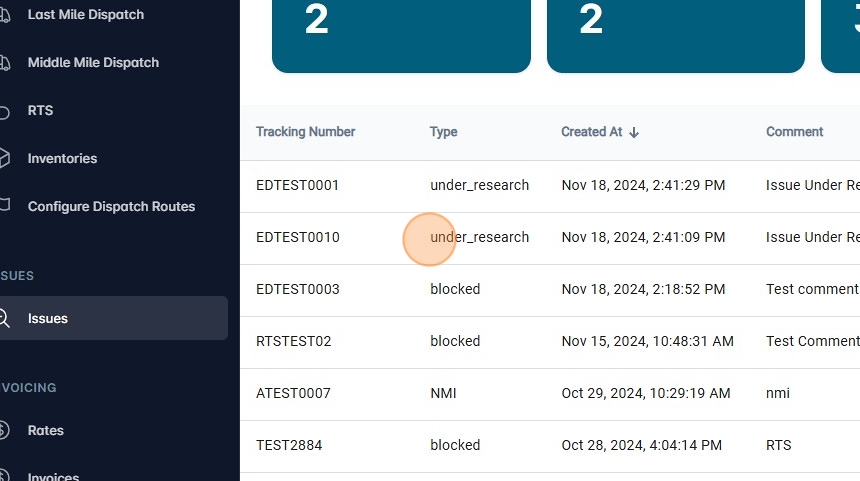
2. On the Type column, there will be the option to see the type of issue.
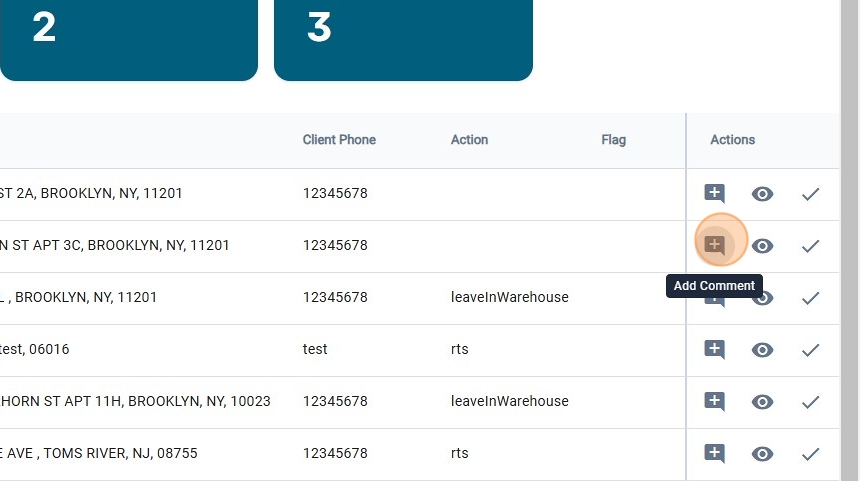
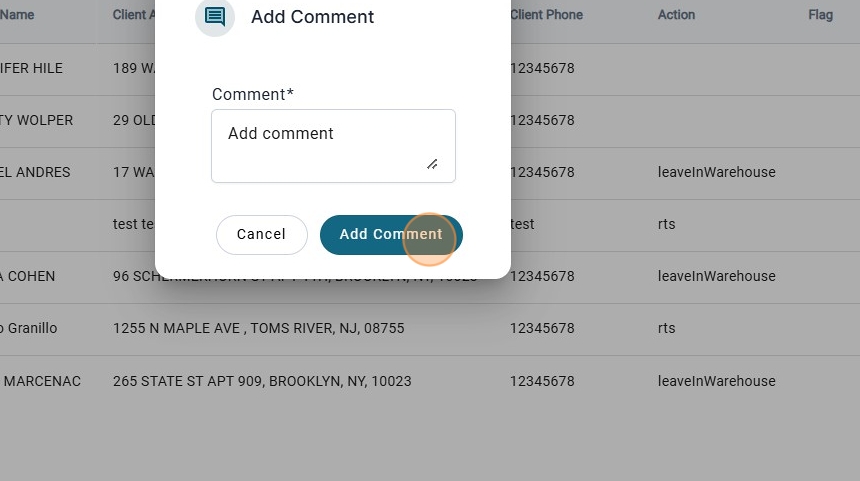
3. There is the option to add comments, by clicking on "Add Comment"
4. Add the comment.
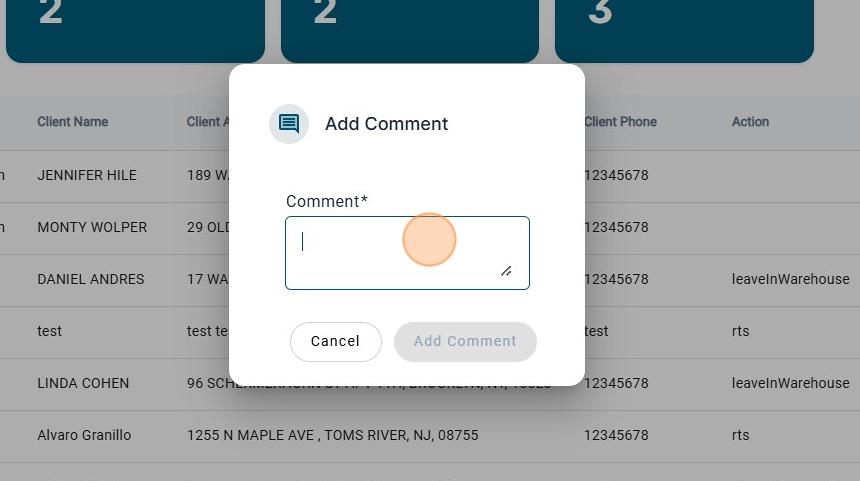
5. Click on "Add Comment"
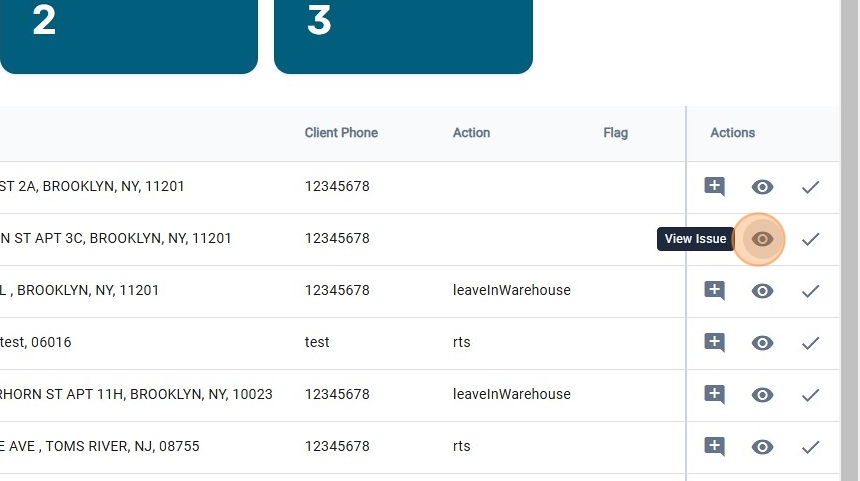
6. To see the issue, click on "View Issue"
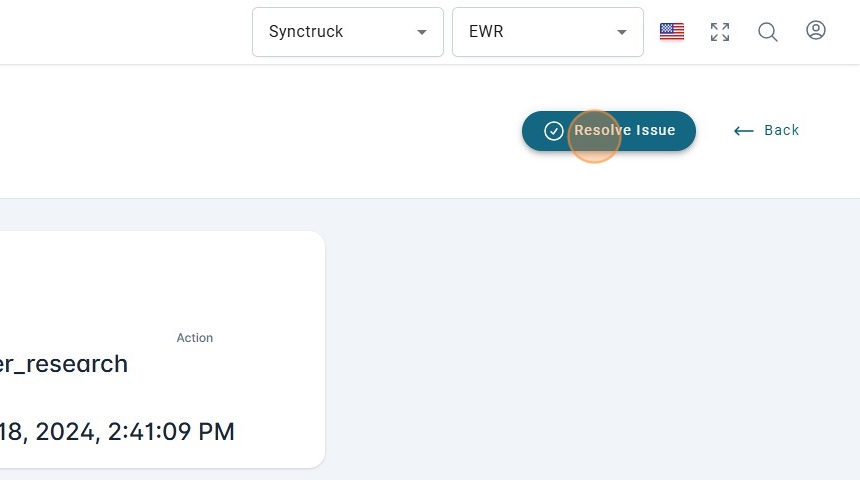
7. On the issue page, there is the option to resolve the issue, by clickin on "Resolve Issue"
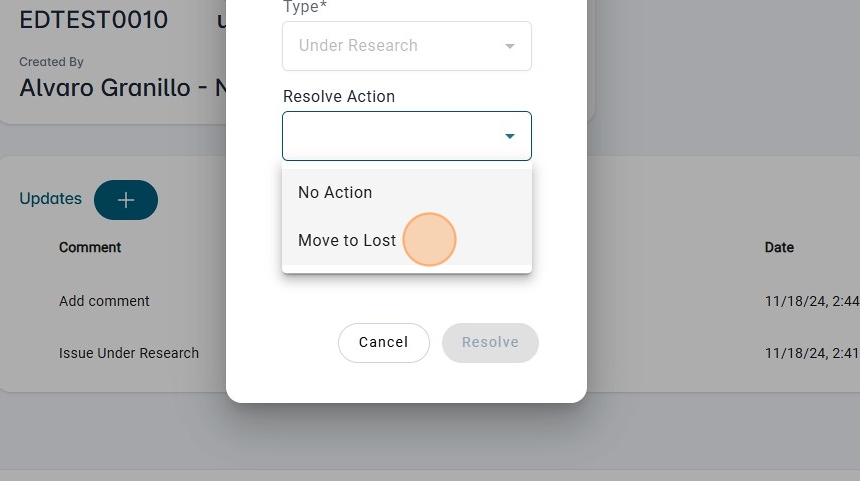
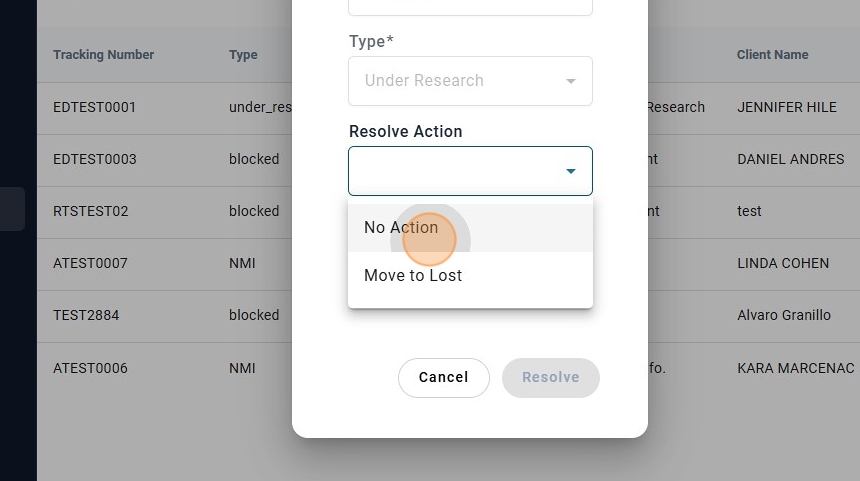
8. Select the "Resolve Action"
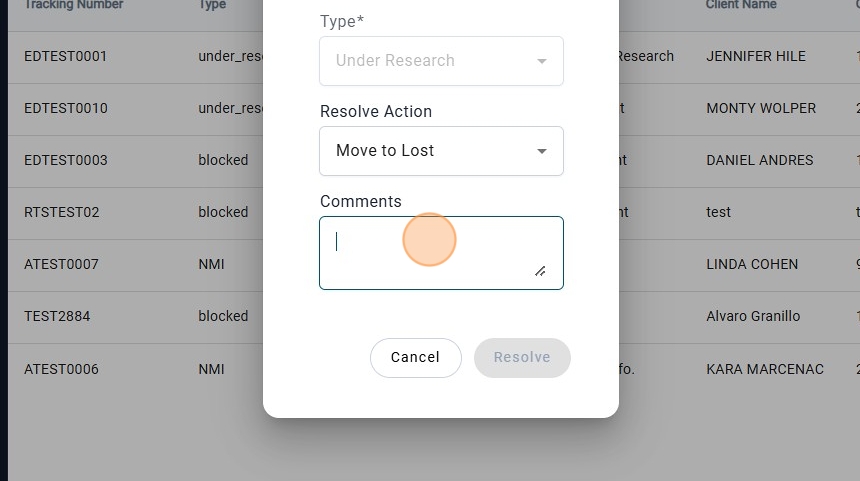
9. Add a comment, it is no optional
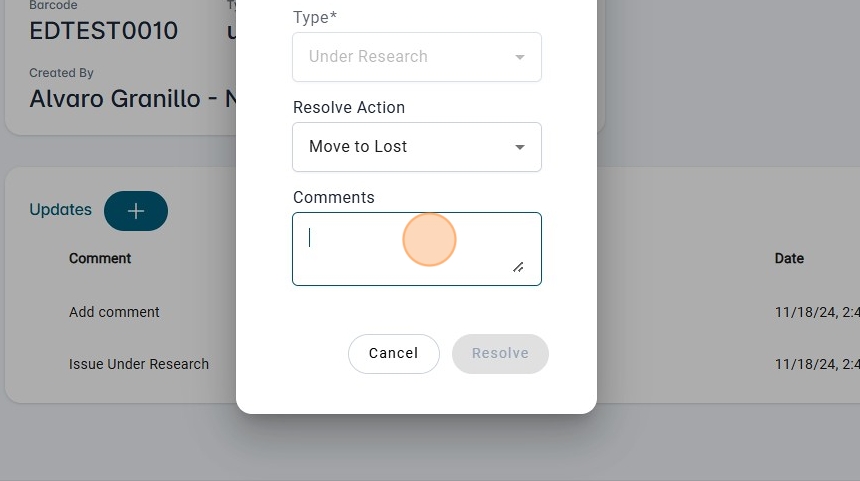
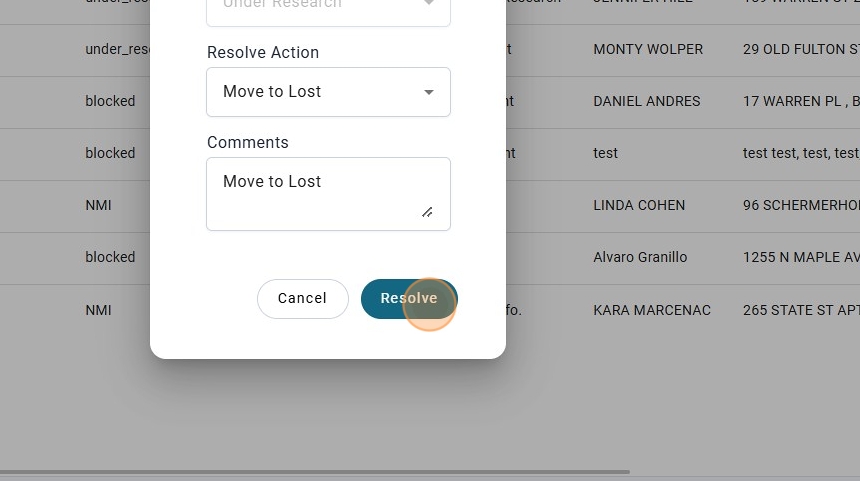
10. Once the comment is added, the "Resolve" Button will be enable.
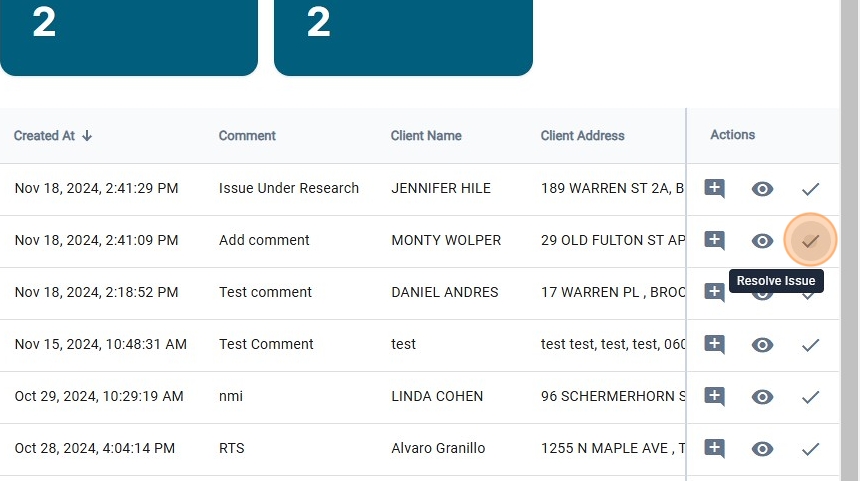
11. The option to resolve Issue, is also on the table, by clicking on "Resolve Issue" in the "Actions column"
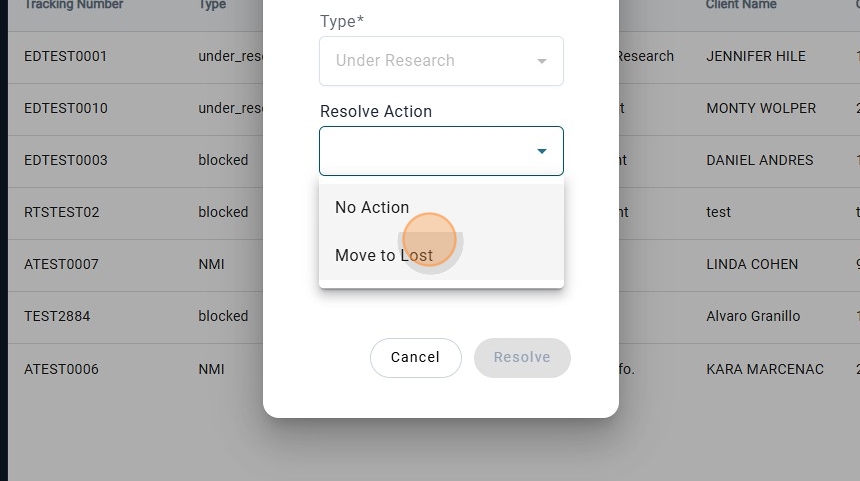
12. Click on the "Resolve Action"
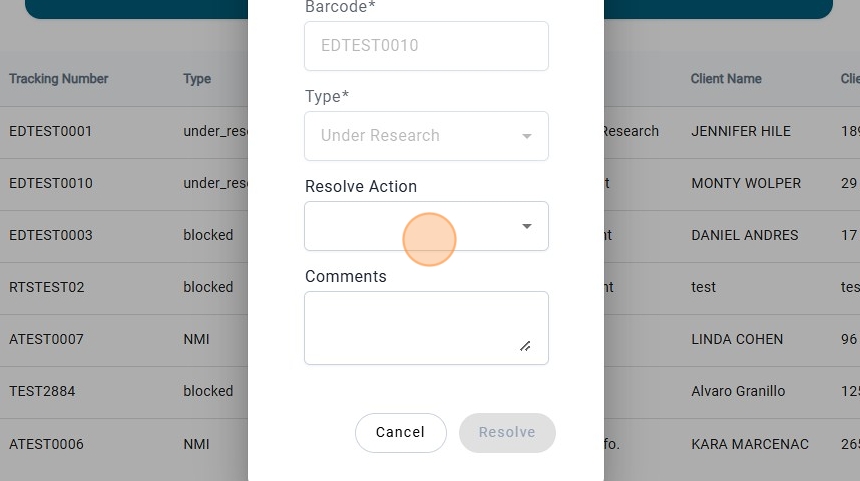
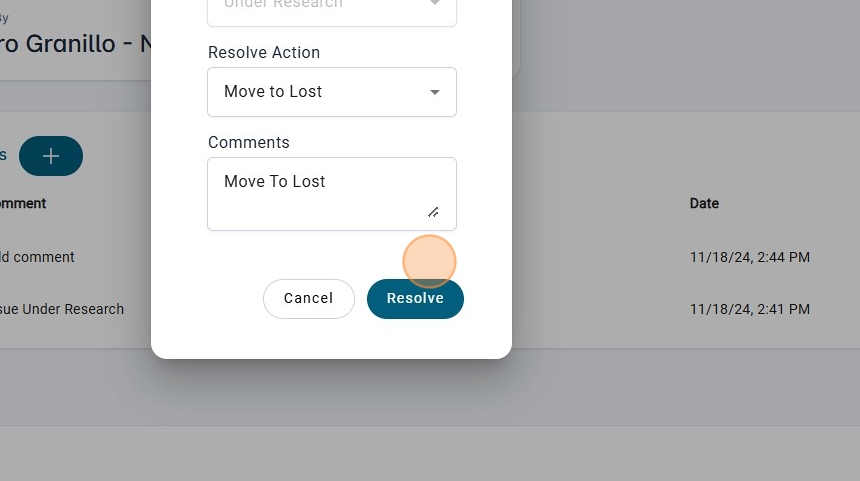
13. If the Action is Move to Lost, click on it.
14. Add a Comment
15. Click on "Resolve"
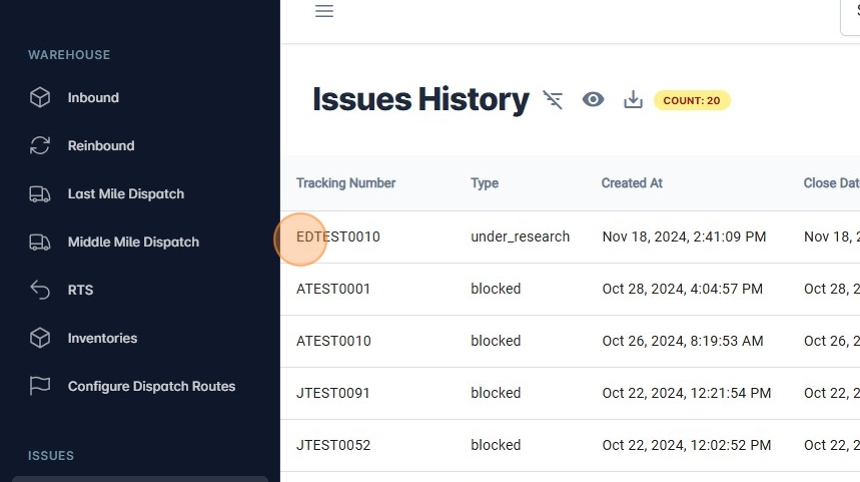
16. Once the issue is solved, there is the option to see the history of the issues that have been solved.
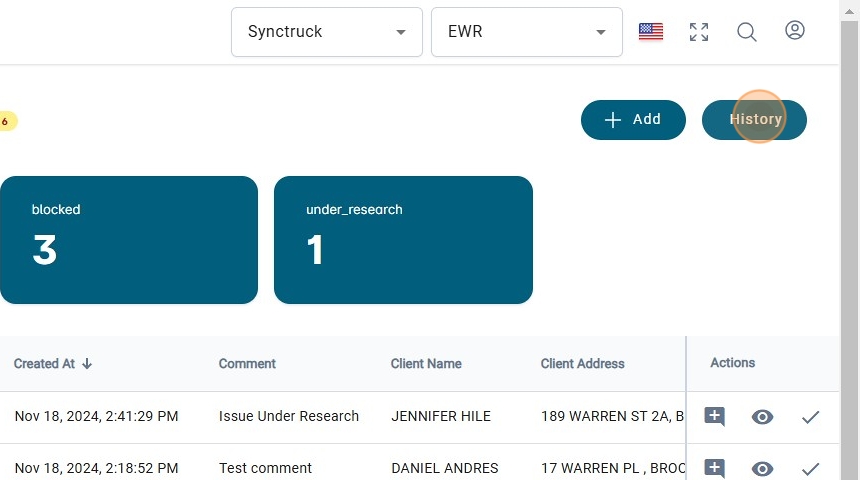
17. The issue that has been solved is here.
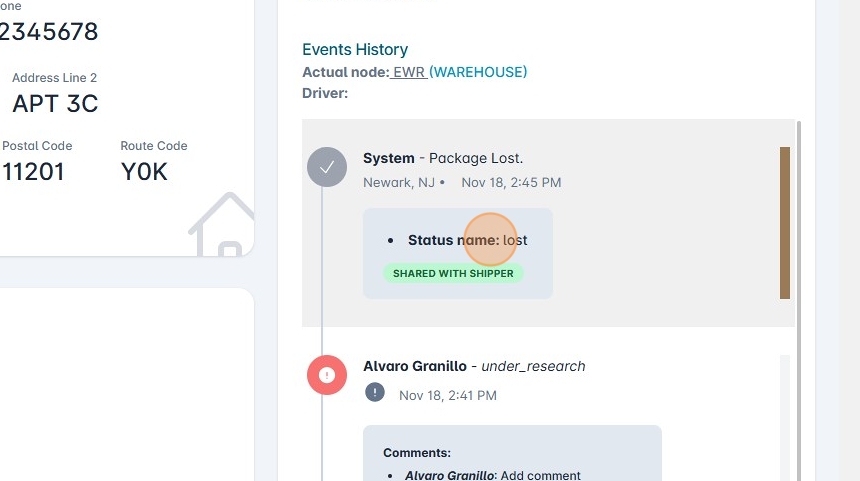
18. Navigate to the "View Shipment" page to see that now the package is in the status of "Lost" since the action was move to lost.
19. If the Resolve Action is "No Action"
20. Navigate to "View Shipment" page, and the shipment will be open, ready to scan again.