Create Shipments with Batch Jobs
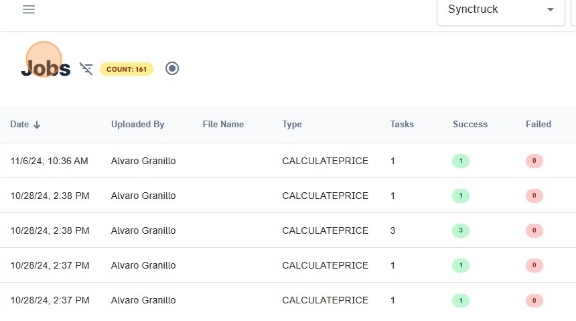
- Navigate to https://platform.syncfreight.com/#/jobs
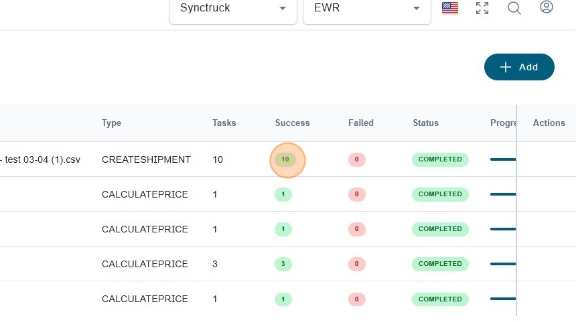
- In the Jobs table, you can see the latest batch jobs that have been created alongside their progress.
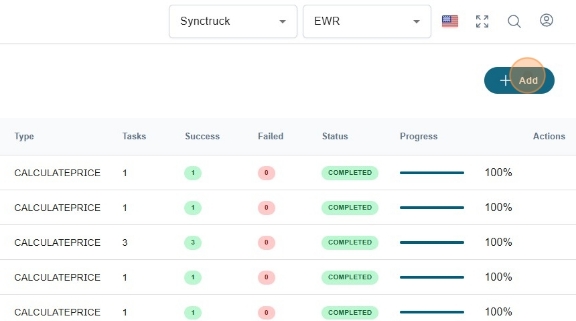
- Click + Add
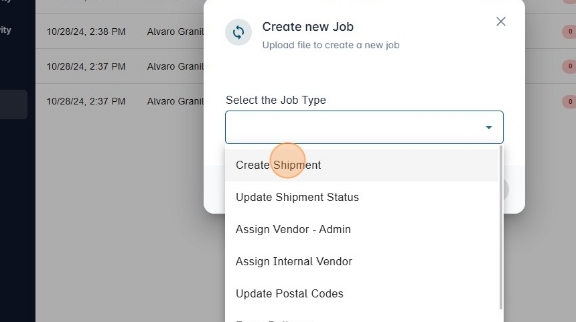
- A small dialog will appear asking for the type of the new batch job.
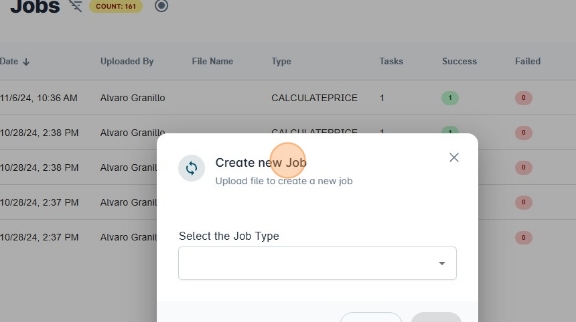
- Select "Create Shipment"
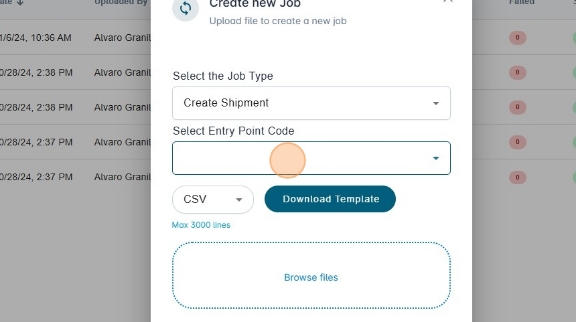
- Then you need to select the entry point. The entry point refers to the origin of the shipment. It could be the shipper that is sending their orders to Syncfreight.
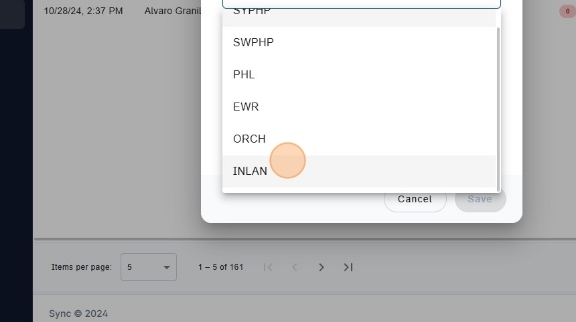
- Click "INLAN"
- Syncfreight accept csv and xlsx files. In order for Syncfreight to correctly read the content in you files, you should upload a file with the correct template. Click on "Download Template" to know what the csv or xlsx file should look like.
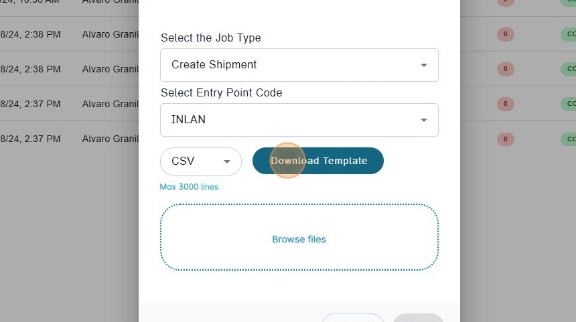
- You can upload your file in the drag and drop area named "Browse files", or you can click the area to open the file explorer.
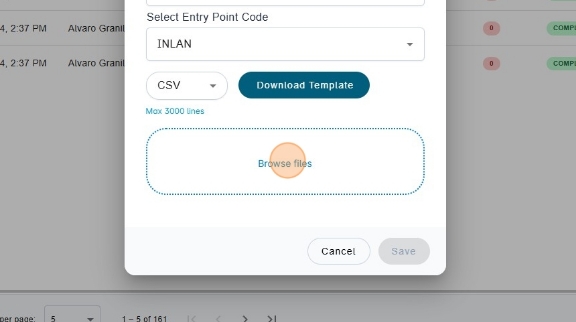
- Once you upload your file, the system will analyze it. If the file contains erros, it will let you download your file again with the error messages.
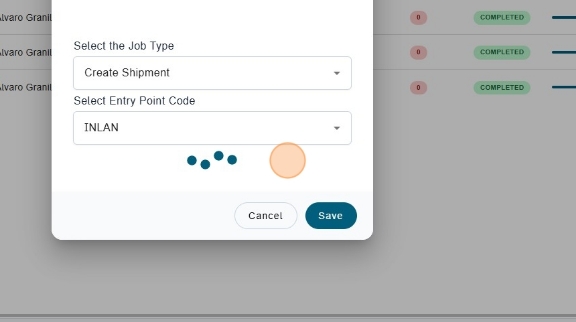
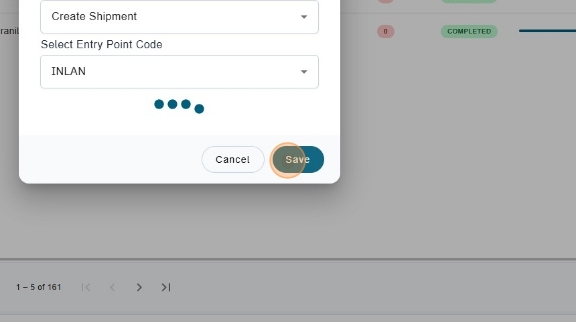
- If your file doesn't have any errors, you can click on "Save" and start the batch job.
- A new row in the jobs table will appear with the batch job status.
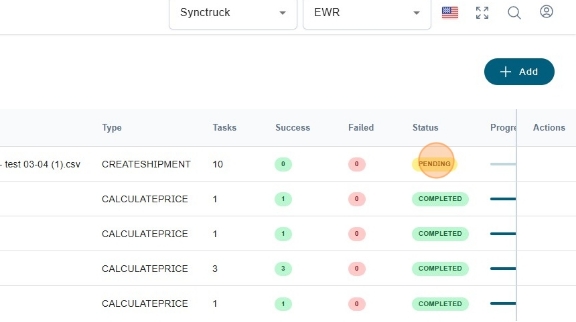
- When all the tasks in the job are finished, the status will change to COMPLETED. If at least one task returned an error, a file with the error message will be available for you to download.