Force Delivery in Batch Jobs
The force delivery action is useful when you need to mark shipments as delivered. In an ideal path, you wouldn't need to use this tool, since vendors update shipments status in the moment they deliver their shipments. But there could be cases where vendors made a mistake or other anomalies in the system happened and this tool would solve the problem.
The Force Delivery in Batch Job does exactly the same as the Force Delivery in the shipment view page. The batch job simply does the same action for a group of shipments, so that you don't need to force delivery one by one.
-
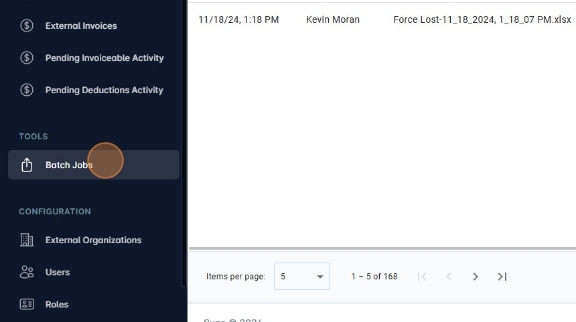
Navigate to https://platform.syncfreight.com/#/jobs or click the option "Batch Jobs" in the left sidebar.
-
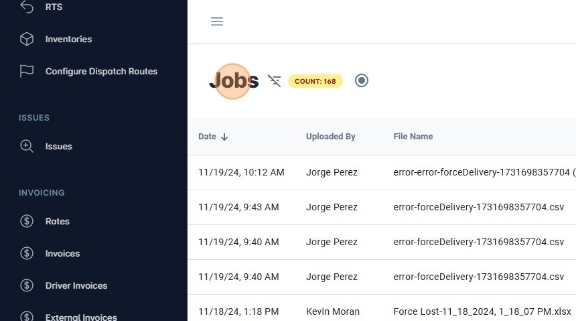
You will see the jobs table whit the summary of the latest batch jobs created in the system.
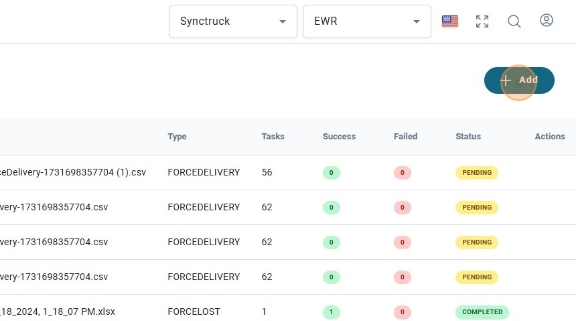
- Click "+ Add" to create a new Batch Job.
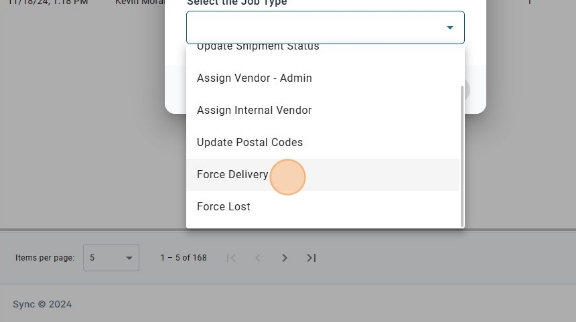
- Select "Force Delivery" as the Job Type.
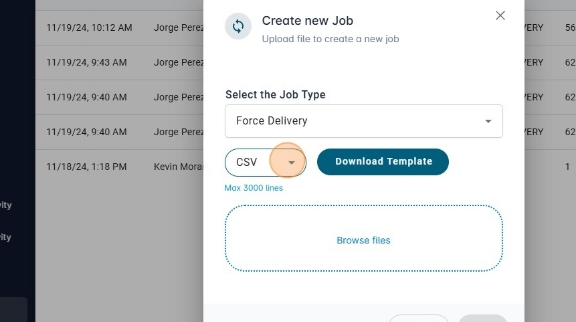
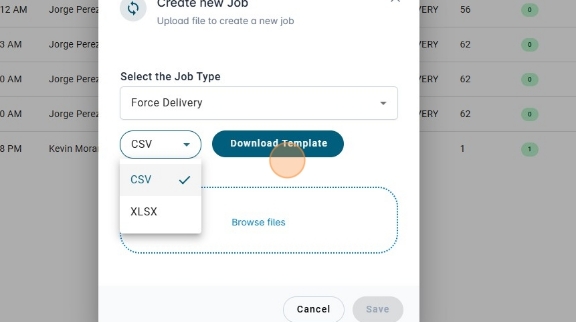
- If you don't know what should be the correct format of the file you are going to upload, you can select the file type (csv or xslx) and download the template.
- Click "Download Template" to download the file template.
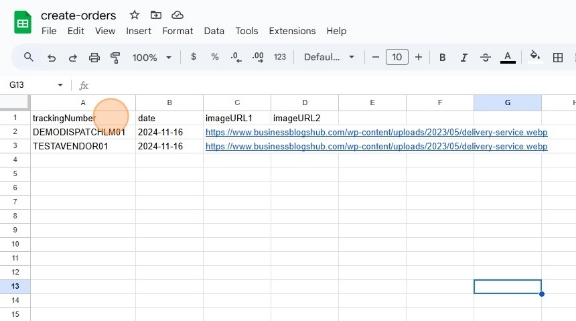
- The template has the following format: trackingNumber,date,imageURL1,imageURL2. The image urls are optional, but the tracking number and the date are required. Make sure that the date format is 'YYYY-MM-DD', time is not required.
- Drag and drop your file or click "Browse Files" to upload your file. If the file has the correct format, you will see the file name and the save button will be available.
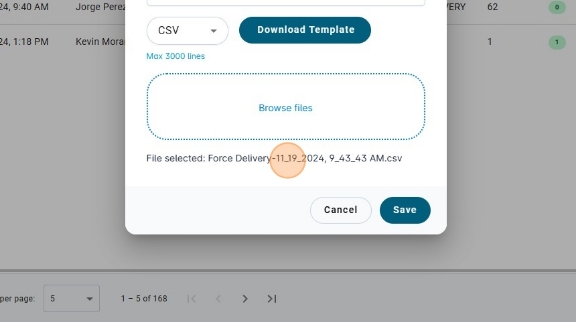
- Click "Save" to upload the file.
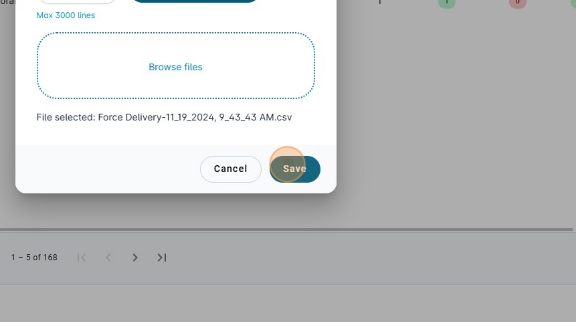
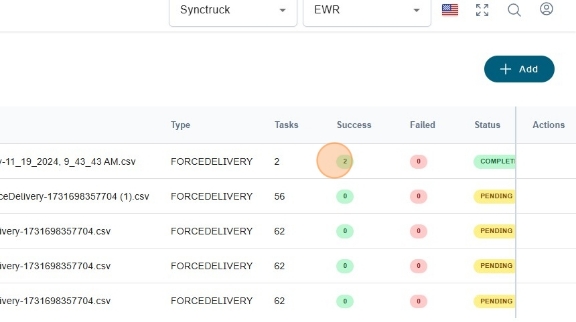
- After the job is created, the jobs table will show the batch job you just created with the number of tasks and the summary of how many were executed successfully and how many failed.
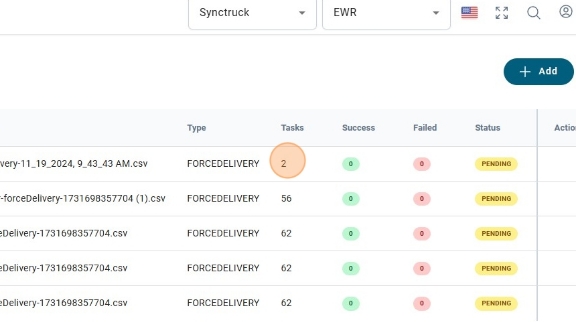
- When the batch job is completed, the status will change to
COMPLETED.